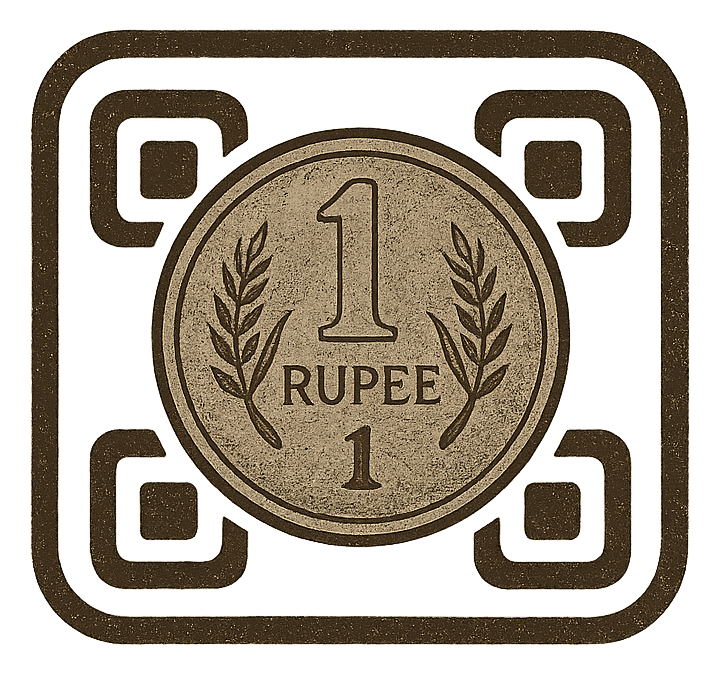
A plain black-and-white QR code works. But a QR code with your brand's colors, logo, and style? That gets noticed, trusted, and scanned 80% more often. In 2025, custom branded QR codes have become a marketing asset, not just a utility tool. This guide walks you through exactly how to create a custom QR code with your logo using One Rupee QR.
Why Add a Logo to Your QR Code?
The Trust Problem with Plain QR Codes
Cybersecurity awareness has made consumers cautious about scanning unknown QR codes. When someone sees a plain black QR code on a flyer, their first instinct is "Where does this actually go?" But when they see a QR code with your recognizable brand logo at the center, the trust equation changes immediately.
Studies show:
What "Custom" Actually Means
A fully custom QR code combines four elements:
Technical Basics: Can a Logo Break the QR Code?
This is the most common question, and the answer is no – if done correctly.
QR codes are built with built-in error correction. This means even if a small portion of the code is obscured, it can still be scanned successfully. There are four error correction levels:
When you add a logo at the center of a QR code, it covers part of the data. One Rupee QR automatically uses Level H error correction when a logo is added, ensuring the code remains scannable even with up to 30% of the pattern covered.
The Safe Zone for Logos
Logo size guidelines that guarantee scannability:
Step-by-Step: Create a Custom QR Code with Logo
Step 1: Prepare Your Logo File
Before creating your QR code, prepare a clean version of your logo.
Best practices for logo files:
If your logo is complex, use a simplified version – an icon or monogram works better than a full horizontal logo lockup.
Step 2: Log Into One Rupee QR
Visit onerupeeqr.com and sign in to your dashboard. Click "Create QR Code."
Step 3: Choose Your QR Type and Enter Content
Select the QR type (URL, vCard, WiFi, etc.) and enter your destination content. For branded QR codes, URL type is most common – typically pointing to your website, campaign landing page, or social media profile.
Step 4: Choose a Pattern Style
One Rupee QR offers multiple design styles:
Step 5: Set Your Brand Colors
Click on the fill color picker and enter your brand's hex color code. Common approaches:
Color contrast rule: The fill color should be at least 40% darker than the background. Test with a contrast checker if unsure.
Step 6: Upload Your Logo
Click "Upload Logo" and select your prepared PNG file. Adjust the logo size slider. Start at 20% and test scanning – if it scans cleanly, you can go slightly higher for more visual impact.
Enable the "Circular Mask" option for a clean circular logo frame that looks professional on any pattern style.
Step 7: Preview and Test
One Rupee QR generates a live preview. Before downloading:
If any test fails, reduce the logo size or increase the contrast between fill and background colors.
Step 8: Download in High Resolution
Download the PNG at the highest available resolution. For print use, the file should be at least 1000 × 1000 pixels. One Rupee QR exports print-ready files automatically.
Color Strategies for Different Industries
Healthcare & Medical
Colors: Blue (#0066CC), Green (#28A745), White background
Style: Standard or Rounded
Reason: Communicates trust, cleanliness, and professionalism
Food & Restaurant
Colors: Warm Red (#E63946), Orange (#F4A261), or your restaurant's brand colors
Style: Rounded or Circular
Reason: Appetizing, energetic, and approachable
Finance & Legal
Colors: Deep Navy (#002366), Forest Green (#1B4332), Gold (#B8860B)
Style: Standard
Reason: Conservative, trustworthy, and authoritative
Fashion & Lifestyle
Colors: Black (#000000), Rose Gold (#B76E79), Blush (#F5CBA7)
Style: Circular or Smooth
Reason: Elegant, premium, and modern
Technology & Startups
Colors: Electric Blue (#007BFF), Purple (#6F42C1), Gradient combos
Style: Circular
Reason: Forward-thinking, innovative, and dynamic
Real-World Branded QR Code Use Cases
Business Cards
A vCard QR code with your company logo replaces cluttered text and saves contact information automatically when scanned. Include it on every physical and digital business card.
Product Packaging
Consumer products using branded QR codes on packaging see 3x more scans than plain codes. Link to how-to videos, warranty registration, or reorder pages.
Event Banners and Standees
A large branded QR code on a 6-foot standee at your booth or event creates immediate visual impact and drives traffic to your registration page, portfolio, or offer.
Social Media & Digital Profiles
Share your branded QR code as a LinkedIn cover photo, in your email signature, or as a story on Instagram. Users screenshot and scan later.
Vehicle Wraps and Delivery Fleet
Branded QR codes on delivery vehicles link to your ordering page or social media. Every red light becomes a marketing moment.
Mistakes That Ruin Custom QR Codes
Too Many Colors
Using three or more colors in a QR code pattern reduces contrast and scanning reliability. Stick to one foreground color on a light background.
Low-Resolution Logo
A blurry logo at the center of a QR code looks unprofessional and reduces brand trust. Always use a vector or high-resolution source image.
Dark Background
QR codes need light backgrounds. A dark background with a light-colored pattern works technically but reduces scan speed significantly. Stick to white or light grey backgrounds.
Testing on Only One Device
Different phones scan differently. Always test on at least one Android and one iPhone before mass printing.
The ₹1 Investment with 1000% Returns
A custom branded QR code from One Rupee QR costs just ₹1. A standard print run of business cards or flyers featuring that QR code means thousands of people see and interact with your brand. The cost per impression works out to fractions of a paisa.
Visit onerupeeqr.com, create your first branded QR code for free, and see the difference a logo makes.
Ready to Create Your QR Code?
Start creating professional, trackable QR codes for your business in just minutes.
Get Started Free